


In the previous post of this series we discussed tiering Active Directory, and this time we're going to cover Entra ID.
Microsoft has solid documentation of its Active Directory tiering model, but there isn't really a straightforward equivalent for Entra. Much of the published guidance on it comes from the community, such as TrustedSec's Entra Privileged Tier Model. But as described in our Active Directory post, shared principle applies to the tiering of both directories:
- Control flows down, and credentials never do.
- No account, role or management path in one should give anyone control of the other.
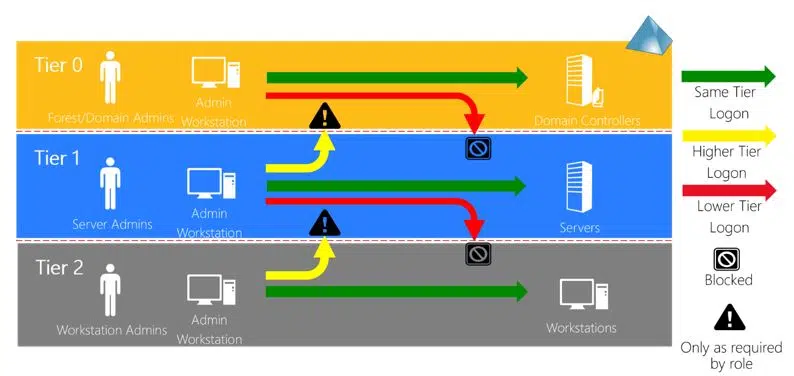
Figure 1: Restricting cross-tier logins.
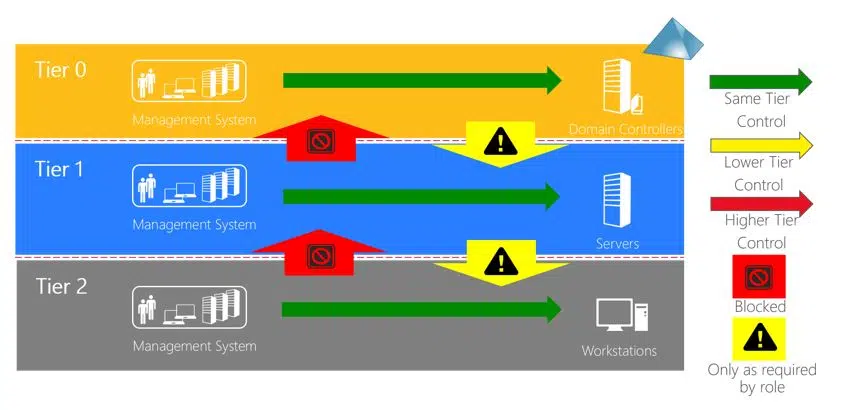
Figure 2: Restricting cross-tier object control.
Working out which roles are privileged
Microsoft's own labels won't reliably tell you which Entra roles are privileged. There are three distinct lists that exist, with each covering a different perspective:
-
Roles marked privileged in the role reference
-
Roles that Security Defaults requires MFA for
-
Roles covered by the managed Conditional Access policy for the admin portals
When TrustedSec compared them in November 2025 they found 33 roles across the lists, and none of the lists had complete coverage.
Labels can also miss what a role can actually do. In early 2026 Silverfort found that Agent ID Administrator, meant only for managing agent identities, could take ownership of any service principal and authenticate as it. The role was documented as privileged but not shown as such in the admin centre. Microsoft has since fixed the scope. To appreciate the potential reach that roles can have in your own tenant, you can use an attack path tool such as BloodHound. (and the AzureHound collector).
Entra Tier 0 holds the roles for core tenant administration, security configuration and privileged user management. It also includes any role that can reach these roles without relying on a misconfiguration. TrustedSec's write-up has the criteria for each tier and the reasoning behind the more nuanced calls. Our list follows their model, except that we've also moved both directory synchronisation roles up into Tier 0:
-
Application Administrator
-
Cloud Application Administrator
-
Conditional Access Administrator
-
Directory Synchronization Accounts
-
Global Administrator
-
Hybrid Identity Administrator
-
On Premises Directory Sync Account
-
Partner Tier2 Support
-
Privileged Authentication Administrator
-
Privileged Role Administrator
-
Security Administrator
Microsoft cut Directory Synchronization Accounts back to a single read permission in August 2024, and the newer On Premises Directory Sync Account role was similarly hardened, but Tenable has shown that both can still call the synchronisation API and reset the password of any synchronised user. Neither role is labelled privileged, so an assignment is easy for an admin to miss. Entra Connect is already Tier 0 in Active Directory, so the account it uses in Entra should be considered Tier 0 too.
Partner Tier2 Support has been closed to new assignments since August 2026, but existing assignments still work. Look for them through the Graph API or BloodHound, as the role doesn't show up under Roles in the admin centre.
As with Domain Admins, keep Global Administrator to fewer than 5 assignments (including your 2 break-glass accounts), and delegate to roles with less permission wherever possible. Microsoft's list of least privileged roles by task is the quickest way to find what's really needed.
Any roles that control a service in your tenant should sit on Tier 1. Exchange Administrator, SharePoint Administrator, User Administrator and Helpdesk Administrator are all examples. Intune Administrator sits here too, at least until your privileged workstations are enrolled in Intune (as we recommend below). At that point it can control Tier 0 devices and moves up to Tier 0 with them, along with any Intune role whose scope reaches those devices. Tier 2 is limited or read-only access, and anything outside these tiers can be treated as unprivileged.
You can also get privilege without holding a role at all. Role assignments won't show you any of:
-
Role-assignable group owners: An owner can add themselves to the group, and that makes them a holder of whatever role the group carries.
-
Application owners: An owner can add a credential to the application and authenticate as its service principal, with everything that identity has been granted.
-
Graph application permissions: A service principal with RoleManagement.ReadWrite.Directory can make itself Global Administrator in a single call. There's no MFA prompt and no interactive sign-in for anyone to notice. Unless you've licensed Conditional Access for workload identities, no policy is evaluated either. Other permissions get there in a step or two, and Emilien Socchi's azure-tiering has the most thorough list of them, all tested.
You need to review owners and application permissions as often as you review Tier 0 role membership, tiering each service principal by what it's been granted.
Enforcing the boundary
As guided by foundational tiering principles, make your Tier 0 admin as cloud only accounts to reduce the likelihood of lateral movement from Active Directory compromise. Someone who can control your on-premises directory or the sync server could change the password of a synchronised admin account. Microsoft's guidance for hybrid tenants is that no on-premises account should have admin privileges in the cloud, and the rule applies in the other direction too: keep your Active Directory Tier 0 accounts out of sync scope.
Give each Tier 0 admin an account that's separate from their everyday one, and do not assign it a productivity licence. Have it follow a naming convention that will allow you to easily identify it with a script (e.g., T0-JSmith, not admin2). Do the same for Tier 1. TrustedSec relaxes some of this at Tier 2, mainly for people outside of IT who won't thank you for a second account. We agree in principle, as long as PIM and phishing-resistant MFA stay in place.
Make every Tier 0 and Tier 1 assignment eligible through PIM instead of permanently active, except for your break-glass accounts. Require an authentication context and a justification to activate a role, and require manual approval for Tier 0. Group membership and ownership get the same treatment through PIM for Groups, and Azure resource roles at every scope get it through PIM for Azure resources. You can also give these accounts Global Reader and Security Reader as active assignments, so admins can carry out day-to-day read-only functions without elevating. This is defensible for the reasons that nobody is tempted to stay elevated all day every day, which can lead to PIM approvals becoming security theatre. Most of the tenants we assess have PIM deployed with permanent assignments still sitting underneath it, so seeing the feature enabled doesn't tell you much by itself. It's worth noting, PIM needs Entra ID P2 or Entra ID Governance for every eligible account and every approver.
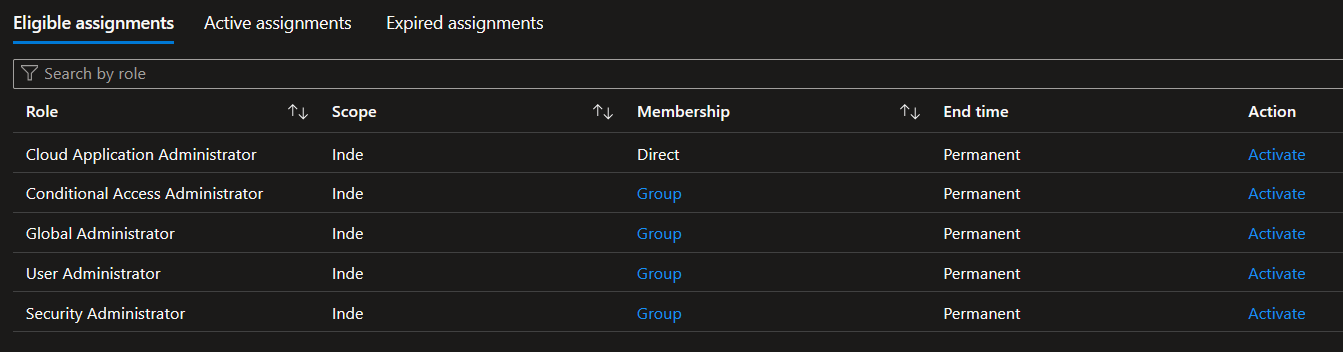
Figure 3: This is clearly a Tier 0 account
For complete coverage of Conditional Access, point your admin policies at both your Tier 0 and Tier 1 directory roles and at a group that holds the admin accounts. Role targeting covers any account that holds an active role, including ones nobody remembered to add to the group, but it only applies once a role is active. With everything eligible through PIM, the sign-in an admin activates from falls outside it until activation forces them to sign in again, and the authentication context you required in PIM covers the activation itself. Role targeting also misses custom roles and roles scoped to an administrative unit. The purpose of the group is to pick those up. Make it role-assignable so only Global Administrators, Privileged Role Administrators and its owners can take someone out of scope.
In those policies:
- Require phishing-resistant MFA.
- Shorten the sign-in frequency.
- Turn off persistent browser sessions.
- Restrict possible sign-in locations.
- Optional: only allow sign-in from privileged access workstations. Identify them with a device filter on an attribute that only Tier 0 can write, because whoever can set that attribute decides which devices count as privileged.
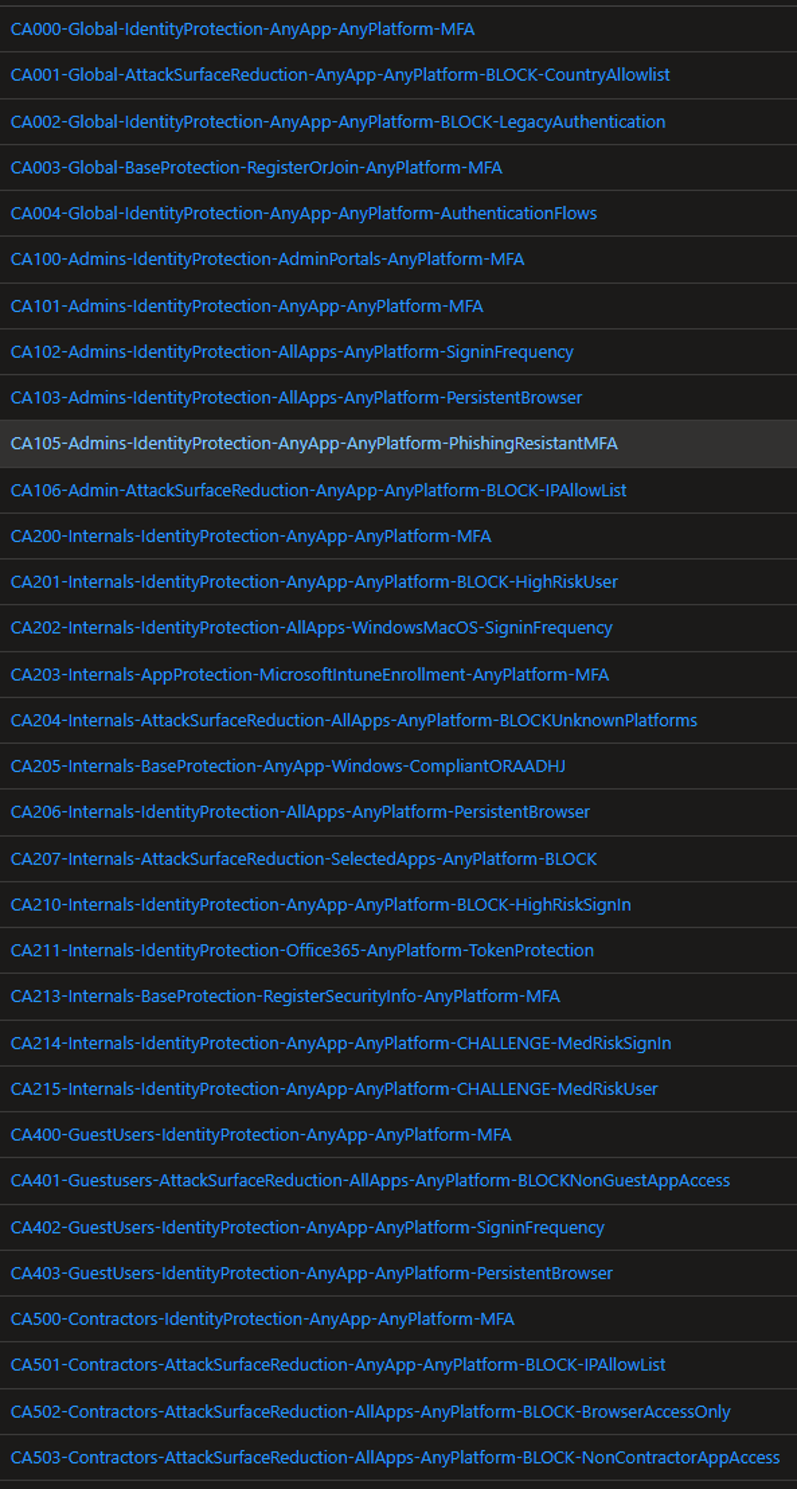
Figure 4: Full implementation of Joey’s baseline (plus contractor policy)
Bind an authentication context to protected actions as well, so that anyone changing Conditional Access then has to step up first. Joey Verlinden's baseline (illustrated above) targets admin roles the same way, and is a good starting point for your Conditional Access Policy.
Break-glass accounts are vital to both BCP and DR. Your tenant should have 2, and both excluded from these policies. Since October 2024 Microsoft has enforced MFA on the Azure portal and the Entra and Intune admin centres, meaning your break-glass accounts aren't exempt. FIDO2 security keys work well for this use case, and can be stored in a fireproof safe with restricted access.
You can also add the accounts to a restricted management administrative unit. Tenant-wide admins, Global Administrator included, can't modify the accounts inside it. A Global Administrator or Privileged Role Administrator can still get in by assigning themselves a role scoped to the unit, but that shows up in the audit log and can be alerted on. Nobody can reset the password of a Global Administrator who's inside one until they're taken out again, so plan how you'll recover before you move anyone into it.
Applications and workload identities
By default, any user can register an application and then add a secret or certificate to it. They can then use that to authenticate with no password policy or MFA. Turn off Users can register applications so that creating one has to be a deliberate admin task.
Application consent is another area that will bite you. Go back through the tenant-wide grants already in place and tier each one. An old Directory.ReadWrite.All grant to an integration nobody remembers is a backdoor in everything but it's name. Use delegated permissions where the scenario allows it, and pick Application.ReadWrite.OwnedBy over Application.ReadWrite.All.
App management policies can block new passwords on applications and service principals and cap certificate lifetimes. They don't touch existing credentials, so you'll need to deal with those separately. Better still, avoid the risk of secret theft altogether and use managed identities for Azure workloads and workload identity federation for pipelines.
Administrative workstations
Having PIM and phishing-resistant MFA won't help if you're activating a privileged role on your day-to-day laptop. Both measures apply before the token reaches your browser, and once it does, anyone who controls the laptop can use the token without needing to pass either.
Like stated in the Active Directory post, you can't be expected to move all of your admins to privileged access workstations right away. Having a dedicated browser profile for administrative tasks is more preferable than intermingling privilege levels, but it's even better if they have an admin server to RDP to, as that keeps the token off the laptop.
Follow Microsoft's privileged access device guidelines to build your workstations. Have them managed by Intune so you can also require a compliant device in Conditional Access. While some advice says to keep your privileged access workstations out of Intune, in a hybrid scenario that most likely means you have Active Directory managing the computers your Tier 0 Entra administrators sign in to, which is the same as having a domain-joined admin server. Someone who is Tier 0 in both directories will need a workstation for each.
People tend to forget that Entra and Azure are not one and the same, and this has implications on directory isolation. Any Global Administrator can elevate themselves to User Access Administrator at the / scope, meaning your Tier 0 in Entra is also Tier 0 in Azure. If you run domain controllers or Entra Connect in Azure, everything from that subscription up to your root management group is Tier 0 too.
Order of operations
A control applied too early either protects nothing or locks someone out. Forcing your administrators to sign in from a Tier 0 workstation isn't going to do much if you have paths that lead from your users to Tier 0. Below is a rough guide to how we implement a tier model when working with customers. It's based on the roadmap from SpecterOps and Teal, with influence from our own experience. If you operate a hybrid environment, be sure to also follow our Active Directory guidance.
- Logically tier your roles, groups and service principals. Start with Tier 0.
- Create cloud-only Tier 0 admin accounts. Remove Tier 0 roles from your synced accounts. Remediate anything you can that allows someone to gain Tier 0. Make sure you know who owns your role-assignable groups and applications. Check application permissions, consent grants and whether users can register applications. Once you know this, map the attack paths to each of your Tier 0 roles. You can use BloodHound+AzureHound or Microsoft Sentinel's Identity Attack Graph to help discover these.
- Identify what will break once you apply your Conditional Access policies and change your assignments to eligible. Move any scripts and automation that run under admin accounts to managed identities or service principals. Tier those based on their permissions.
- Create your break-glass accounts first. Then build out your Conditional Access policies using a reputable baseline and implement PIM. Have your policy requiring a privileged access workstation set to report-only.
- Set your assignments to eligible. Work on any paths that allow someone to gain Tier 0.
- Roll out your workstations. Once that's complete, enable your policy requiring a privileged access workstation.
As with Active Directory, always retest and address paths that allow someone to elevate to Tier 0. Even with a well-implemented tier model, they will still get made occasionally. When you do, take the time to understand why they exist before trying to fix them, or they'll just reappear.